

It comes up, predictably, in any conversation I have with a customer about managing their macOS fleet with Intune: “But how does it compare to Jamf?”
Table of contents
The truth is, there isn’t a perfect feature parity between Intune and Jamf. Not yet, at least.
Intune adds new features to its macOS management capabilities now more frequently than ever before. This year alone we’ve seen major improvements like Platform SSO registration during enrollment and an expanded selection of policies in the Settings Catalog.
Even though Microsoft is closing the gap, Jamf still wins in number of features (even if it’s not exactly my favorite UI) but for most organizations it really doesn’t justify the cost- especially when most are already licensed for Intune with an existing licensing suite from Microsoft.
If you don’t have a primarily macOS fleet and especially if you’re already managing Windows or mobile devices with Intune, migrating to Intune is an easy choice to make, but it can definitely feel like an overwhelming task.
The Script
When it comes to migrating ADE/corporate-owned devices between MDMs, a factory reset seems like the obvious starting point, and in the past that has been the case. Luckily, Microsoft shared a shell script that facilitates the process without having to wipe devices and cause a significant amount of user impact and a larger need for technician touch.
The script is available on an official Microsoft GitHub repo containing other super helpful macOS scripts. You can find it here: Shell Intune Samples.
The specific migration scripts and readme can be found here.
The migration script is a great starting point and has seen a number of updates since the first time I used it, but there were definitely some gotchas not described in the readme that threw me for a loop.
But hey- that’s why I’m here, so that you can benefit from my pain!
Before starting:
Know your fleet
Certain details about how your fleet is currently managed will play a big role in how the devices will migrate and the general user experience. An easy way to prepare for this would be to go into Jamf and create an Advanced Computer Search.
Computers > Search Inventory > New (Advanced Computer Search)
From here you can create a search of the entire macOS fleet by leaving the criteria empty and instead selecting the “Display” tab.

Now, you will want to select the properties that you need to search for. Some that I personally recommend including are:
- Managed
- Enrolled via Automated Device Enrollment
- Supervised
- Serial
- Username
- Last Check-in
- Encryption State
Once complete, you can export to CSV and sort in Excel by any of the properties you selected to help along the way with planning and tracking progress. We’ll cover why some of these properties are important later.
Confirm you have a solid cloud foundation
I know, that sounds like an oxymoron. Don’t worry about it. Moving forward.
There are a few settings in your Intune tenant and Apple Business environment that you will need to check before setting off on this migration journey.
Entra ID User Security Group
For your migration and general macOS management through Intune, it’s more than a good idea to have a static “Assigned” Entra ID Security Group with all of your organization’s macOS users- not dynamic. Setting this up early will make things much easier when it comes time to configure Platform SSO during enrollment, enrollment restrictions, and any other user-based targeting that comes up down the line.
Enrollment Platform Restrictions
In Intune, there’s a feature called Enrollment platform restrictions. It’s ok if you didn’t know about it, I see tons of folks with fully configured tenants who had no idea the feature existed until I pointed it out. The point of this tool is to limit who in your organization can enroll devices of each platform and ownership type.
Devices > Enrollment > Device platform restrictions
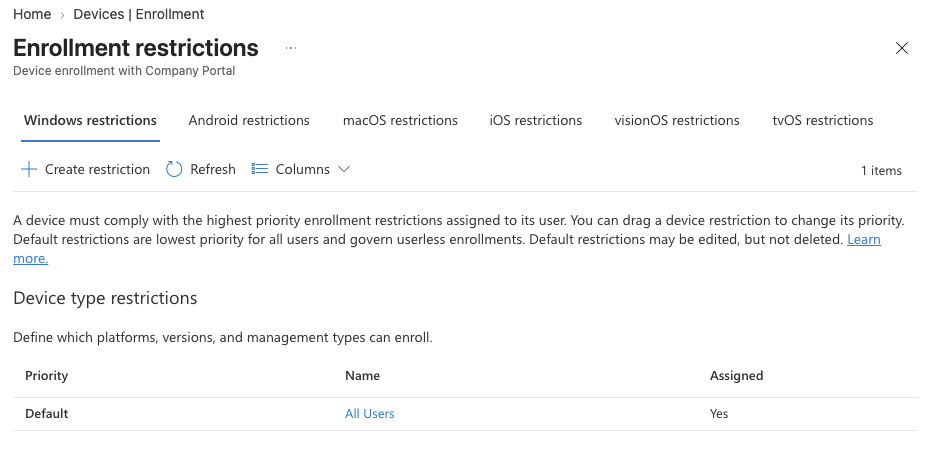
There is a default policy (that you cannot delete) which covers each platform and is applied to all users in your tenant. This default represents the lowest priority policy. Any additional policy you create will show a higher priority and will override that default for whichever user security group you assign it to. All new policies after that will have to be created under the platform-specific tabs.
So for example, if you have macOS enrollments disabled on the default profile, you will need to create a second macOS-specific profile that allows enrollments for the user group you approve.
If you are migrating devices that were not enrolled via ADE, you will need to add their serial numbers to corporate device identifiers first. If for whatever reason you can’t do this, make sure to enable “personally owned” device enrollments because then devices will initially enroll as if they are personally owned. They will have to be adjusted to corporate-owned in the Intune portal once they complete their migration.
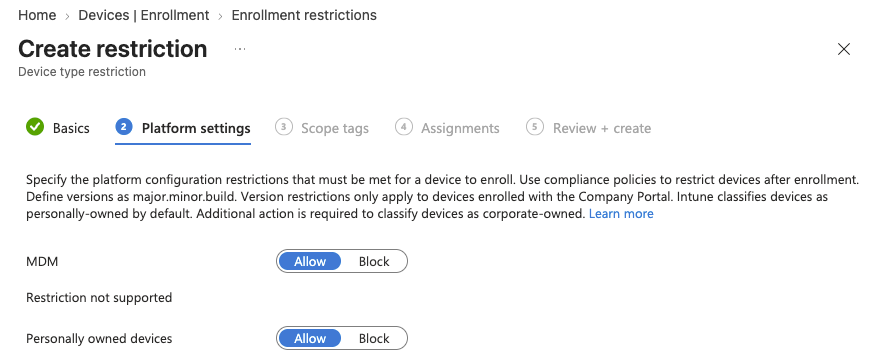
A good practice is to first allow only test users so as to prevent accidental personal enrollments by your end-users.
Apple Business Config
If you’re using ADE enrollments, you will want to ensure that you have Intune set up for enrollment via Apple Business. If it hasn’t already been completed, you will need to:
- Add MDM server
- Upload the MDM server token
- Create an Apple enrollment policy (See part 1 of my enrollment series)
- Set your policy as the default for macOS devices
- Change the MDM of any test device (and later on production devices) in Apple Business to Intune as per directions in the migration script readme
Gotchas and Troubleshooting
Partner Device Management
This one is especially fun. I have found that a good number of organizations have turned on the Jamf partner device management and yet have no recollection of doing it. You’re going to start by going into the Intune portal in the Tenant administration section.
Tenant administration > Connectors and Tokens > Partner device management
From there, you can (and should) add your Entra ID user group to the Excluded Groups.
If you don’t do this (and the feature is configured), you will likely run into a very confusing issue where devices throw an error stating that they can’t enroll because they already have another MDM in place. Manually removing local management and trying again will not work, so avoid getting caught chasing your tail and make sure this is all set.
FileVault Keys
When you have already encrypted your fleet and had the FileVault personal recovery key (PRK) saved to Jamf, there are a few scenarios to plan for. First things first, make sure you have a FileVault policy configured in Intune that includes a setting that enforces recovery key escrow.
In my tests and rollouts with ADE–enrolled devices, the PRK was successfully escrowed to Intune shortly after enrollment. This is the best-case (and easiest) scenario.
If they were enrolled without ADE, the recovery key may not escrow to Intune on its own. That’s where things get fun- because unfortunately, triggering a key rotation as a remote action in Intune isn’t enough to resolve this.
Here are your options if this is the case.
If your users have access to their existing key, they can upload it via Company Portal. Microsoft specifically calls out that the website should be used, not the app, and describes the steps to complete as:
- Direct the user to the Company Portal website: portal.manage.microsoft.com
- Have the user choose the affected device and select “Store recovery key”
- The user will have to manually enter the existing PRK
At this point, Intune will be able to verify the existing key and complete a rotation- after which, remote actions will allow you to rotate when needed.
If your user does NOT have access to their recovery key, you can rotate it on the device itself using Terminal. Because it has already gotten the Intune policy that sends new keys to Intune, once the key rotates and the device completes a check-in you can confirm that you can view it in the Intune portal.
If the user is an administrator and is comfortable using Terminal itself, you can instruct them to use this shell command. If they are a standard user or don’t feel comfortable using Terminal, hands-on assistance from a technician with access to an administrator account will be required.
Enter the following commands as an administrator to force a rotation locally:
cd /Applications/Utilities
sudo fdesetup changerecovery -personal
You will get a prompt to enter the account password and the new key will be generated and display in the portal shortly after a completed Intune device sync.
Entra Join and Platform SSO
Platform SSO is so powerful as a tool in your MDM arsenal. It helps link the local user account on a macOS device to an Entra ID identity, allowing for things like Entra Join, included SSO app extension configuration, a simpler and more unified sign-in experience across hardware/software, and the ability to adopt a more secure passwordless experience.
There’s more, but I think you get the general point. Find the more specific details from Apple and Microsoft.
When it comes to assigning your PSSO policy and the Company Portal application, I highly recommend using the user–based Entra ID group mentioned earlier. This is required in order to allow registration to Platform SSO during ADE enrollment, and it will continue to work for you once migration is complete and you move to net new enrollments directly to Intune. And no, the “All Users” option will not cut it. Sorry, I don’t make the rules.
With Company Portal, there are also a couple of notes to be aware of. First of all, you should make sure you’re deploying the most up-to-date version, because older versions will likely cause registration failures.
In addition, you will want to deploy Company Portal one of two ways.
- Download the .pkg and deploy it as a macOS line-of-business application (LOB app)
- Remove any bundle ID except for
com.microsoft.CompanyPortalMac
- Remove any bundle ID except for
- Deploy the shell script specifically designed to work with PSSO in the open source Intune Shell Scripts repository from Microsoft
- This script always downloads the latest version of Company Portal without the extra checks from the original script that could delay deployment and cause registration issues.
Microsoft officially recommends the LOB method in documentation, but I personally have seen success with using the script method in a number of projects. Either way, you definitely still have to assign to a static user group.
How to confirm it all actually worked
So your device shows up in Intune, great news. That’s not all I’d use as proof of a successful migration, though. There are a few more things to consider.
- Migrated devices show up in Intune with the expected serial number, device ownership, and primary user listed
- Devices should check in successfully after they are migrated
- FileVault is enabled and the recovery key is available when checked via the Intune portal
- Required configuration profiles all report as “Successful” in the Intune portal
- Devices show an Entra ID Join state (rather than registered), indicating successful platform SSO registration
- Devices report as compliant in Intune
- The user experience is successful
- Users can log in after a reboot
- Wi-Fi, VPN, and any other essential applications work as expected
- Users can access resources protected with Conditional Access policy
In the end, I recommend that you start this process with test devices and then roll out in phases, beginning with technical users.
Conclusion
Well folks, that’s all for now. I’d love to hear about your migration stories. Did you run into any interesting issues?
Comment, like, and subscribe. Well, there is no like or subscribe. So feel free to leave a message and tell everyone what you found!
Until next time.
Sources
- Microsoft: Shell Intune Samples
- Microsoft: Migration scripts and README
- Jamf: Creating an Advanced Computer Search
- Microsoft: Create device platform restrictions
- Microsoft: Identify devices as corporate-owned
- Microsoft: Jamf Partner Device Management integration and group scoping
- Microsoft: Encrypt macOS devices with FileVault using Intune
- Microsoft: Store your personal FileVault key
- Apple: Platform SSO for Mac
- Microsoft: Configure Platform SSO for macOS devices
- Microsoft: Configure Platform SSO during Automated Device Enrollment
- Microsoft: Company Portal installer sample for Platform SSO
- Microsoft: macOS Platform SSO known issues and troubleshooting



Leave a Reply