

If you’re the kind of Intune admin who isn’t too intimidated to go into the Apple enrollment blade, you may have noticed that there’s a new way to onboard your organization’s Apple products.
For years, we have used enrollment “Profiles” to onboard corporate-owned Apple devices. Now, linked to your organization’s enrollment token from Apple Business, you will see the new option: “Enrollment policies”.
I know, the difference seems arbitrary. At first glance, they look to be just about the same. So is this just Microsoft making an aesthetic change or is there an actual difference in function?
Let’s dive in.
The profiles you’re used to would receive their device assignments when you either set a profile as “default” or when you manually assign them in the Intune portal. The new policies work similarly, but with some pretty exciting new features designed to give you better control over the timing of device onboarding.
The old: Devices added to Apple Business (formerly Apple Business Manager, or ABM) are directed to Intune and assigned an enrollment profile that manages type of enrollment, the settings shown during Setup Assistant, department information, and some early security settings. Most folks would at that point typically assign core policies with either assignment filters or dynamic device groups based on the enrollment profile name.
The new: Devices are directed to Intune with an enrollment policy the same way that they were with profiles. An “assigned” (static) security group can be linked to the enrollment policy and enrolling devices are automatically added to the group. This security group can be used to assign configurations or applications as needed, reducing delays related to dynamic group evaluation.
Enrollment Time Grouping
This is the exciting part.
Previously, when you wanted a device to automatically join a security group you would most likely create a dynamic device group based on the name of your chosen enrollment profile. The Apple device would go through the Automated Device Enrollment (ADE) process during Setup Assistant, the user would authenticate, and the device would complete enrollment.
At this point, the dynamic device group that you configured needs time to evaluate and update its membership. Microsoft states that the entire process of group evaluation and application of policy can take up to 8 hours. That means that a freshly enrolled device might receive all of its policies and application assignments right away, but it could also potentially take an entire day of work before the user has a fully functional and secure device.
With enrollment policies, you now have the option to add a static “Assigned” security group to your enrollment policy. That means the device is added to the group during enrollment, allowing Intune to begin delivering assigned policies and applications without waiting for dynamic group evaluation or relying on “All Devices” assignments paired with filters that can be difficult to track.
Requirements
Enrollment policies are supported on iOS/iPadOS, macOS, tvOS, and visionOS.
Enrollment Time Grouping is supported on Windows 11 with Autopilot device preparation and Android Enterprise in addition to the Apple platforms discussed here. We will go further into these additional platforms in upcoming posts.
Enrollment time grouping is not supported with Azure Government or Azure operated by 21Vianet.
Roles required to configure enrollment time grouping with Apple devices include:
- Intune permissions to create/modify enrollment policies
- “Enrollment time device membership assignment” permission which exists in the “Enrollment programs” category of Intune custom roles
- Entra Group Administrator, microsoft.directory/groups/owners/update, or existing ownership of the group used for this feature

For help with creating custom roles in Intune, see:
https://learn.microsoft.com/en-us/intune/fundamentals/role-based-access-control/create-custom-role
Setup Guide
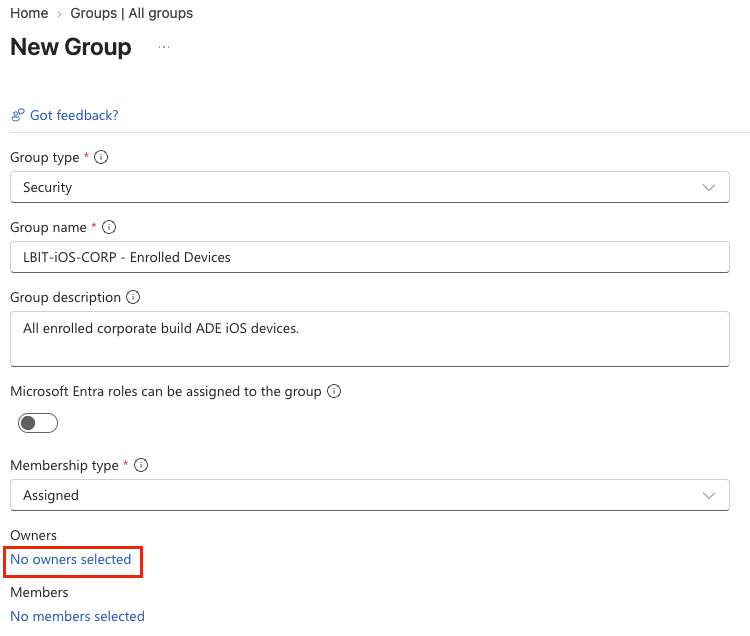
To create an enrollment policy that takes advantage of enrollment time grouping, you first will have to create an assigned (static) Entra ID group. If you’re using a scoped or custom Intune role, the group will need to fall within the Scope (Groups) of the Intune role assignment. Global Admins and Intune Admins will not run into this. There is one additional requirement: you must add the Intune provisioning client as a group “Owner”.
Create the device group
First, create a group name and description that represents the build you are preparing to manage. Select “No owners selected”
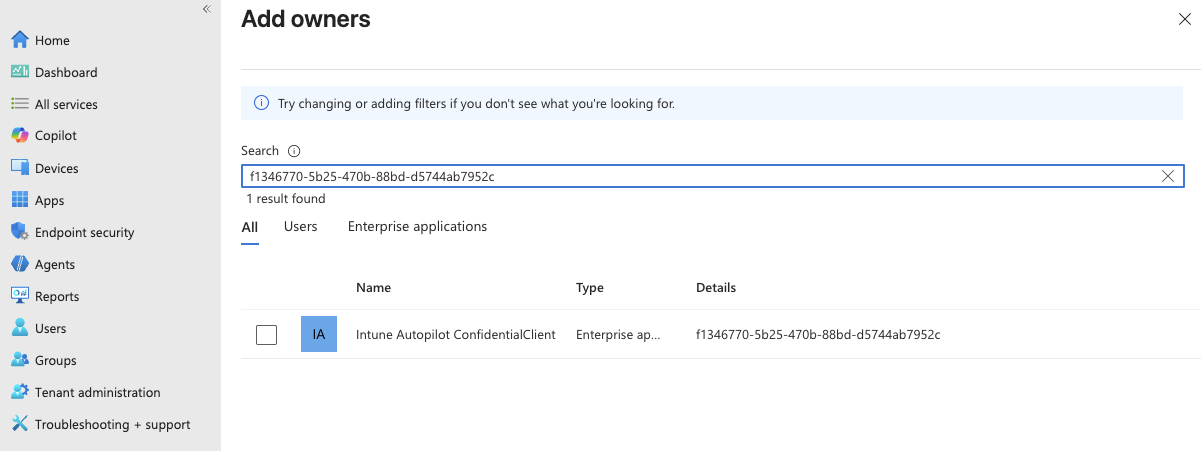
Now we need to add the client.
Some tenants might display different names based on their current version, so to avoid confusion make sure to search for the specific AppId:
f1346770-5b25-470b-88bd-d5744ab7952c
This will pull up the client, regardless of what it is named in your tenant. If the client doesn’t appear in your tenant at all, even when searching with the AppId, you can add it manually by following Microsoft’s directions:
Create the enrollment policy
Once you’ve added the owner and the group is created, you will be ready to create the enrollment policy. You’re going to first follow the path you normally would have to create the legacy Enrollment Profiles:
Intune > Devices > Enrollment > Apple > Enrollment program tokens > Your token
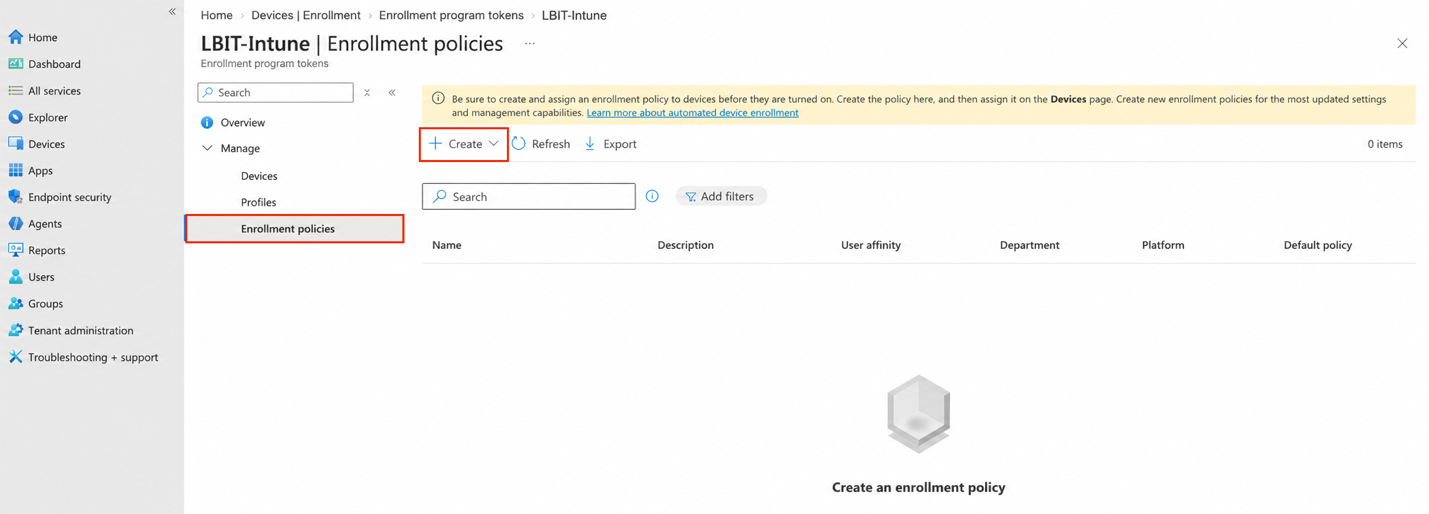
Instead of selecting “Profiles”, select “Enrollment policies”.
You will notice that the options around configuring this policy look almost exactly the same as when you would create a legacy profile, with a couple of distinctions.
(Note, your tenant can support up to 1000 enrollment policies per token.)
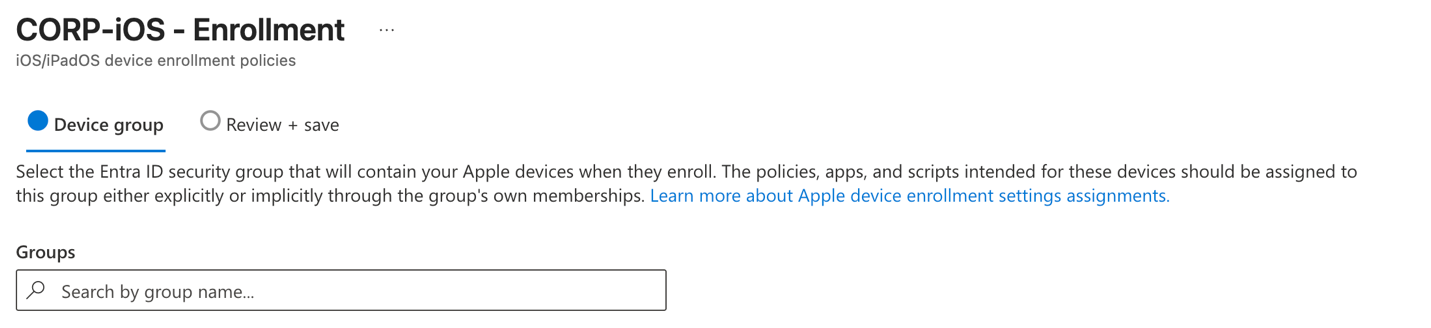
Group selection
When you create your policy and select all of your preferred settings, you will be prompted to select a device group. This group will be the static Entra ID security group that you created earlier.
Authentication method
When creating user affinity enrollment policies, you should select “Setup Assistant with modern authentication” as default. This is recommended by Microsoft… and me.
You should still deploy the Company Portal application to iOS devices as a VPP app separately if you want your users to access it for available applications or troubleshooting.
For macOS devices, deploy Company Portal as either a script or an application. I like to use the Microsoft-provided shell script that helps account for any timing issues with platform SSO registration. You can find that script (and many more) right here:
The macOS experience is going to look a little bit different just by nature of the platform, but in the same ways this was true with legacy profiles.
Make sure you do not assign a Platform SSO (PSSO) configuration policy that enables registration during device setup to devices enrolled without user affinity.
- For enrollments using user affinity (single user devices) Microsoft (and I) still recommend using Setup Assistant with modern authentication, supported on macOS devices running 10.15 or later. Users will authenticate with Company Portal to complete device registration.
visionOS and tvOS enrollment will target devices without user affinity and will not support configuration of Setup Assistant screens or compliance policy once enrolled.
Troubleshooting Enrollment Time Grouping
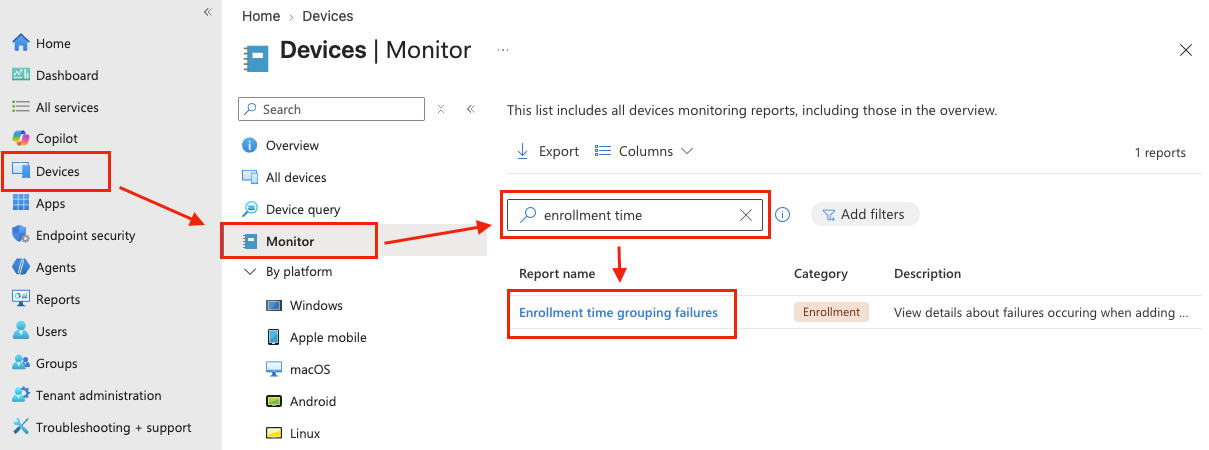
If you notice any issues with devices not being added to your security group after enrollment, there is built-in reporting. Just remember that only newly enrolled devices will automatically populate the group. You can find the reporting in:Devices > Monitor > Enrollment time grouping failures
What about existing legacy enrollment profiles?
If you have any existing enrollment profiles, no need to panic. They will continue to work, but it is important to note that they will not receive any new features moving forward and will eventually be retired.
Your best bet is to create enrollment policies and to make sure that the policies are set as your defaults for enrollment. Keep in mind that updated or new enrollment policies will only affect newly enrolled devices that use them.
To wrap everything up, this is definitely more than just an arbitrary UI change (not that Microsoft would ever do that). Enrollment time grouping, available with the new enrollment policies, is a meaningful new feature that will help get your fleet configured and ready for use sooner.
And for every busy endpoint architect or engineer who doesn’t have time to read my entire spiel:
TL;DR: To benefit from a faster onboarding process and to avoid eventually getting stuck with older unsupported profiles, create the newer “Enrollment policies” for your Apple device fleet. Add a static group with the Intune provisioning client selected as a group owner and make sure to set your new enrollment policies as the defaults. Then just use that same group to assign your policies and apps as usual.
Coming next: Android Enterprise enrollment and Windows device prep policies.
Sources:
https://learn.microsoft.com/en-us/intune/device-enrollment/apple/setup-automated-tv-os
https://learn.microsoft.com/en-us/intune/device-enrollment/apple/setup-automated-vision-os
https://learn.microsoft.com/en-us/intune/device-enrollment/apple/setup-automated-macos
https://learn.microsoft.com/en-us/intune/device-enrollment/apple/setup-automated-ios
https://learn.microsoft.com/en-us/intune/device-enrollment/setup-time-grouping
https://learn.microsoft.com/en-us/intune/fundamentals/role-based-access-control/create-custom-role

Leave a Reply