

In Part 1, we covered updates to Apple enrollment and the newer enrollment policies. Those updates came paired with a useful new feature: Enrollment Time Grouping.
Apple devices aren’t the only ones that get to join this party- today we’re going to cover how to use it with Android Enterprise devices.
In this post
If you’re used to waiting for applications or configurations to apply to newly enrolled devices, you might have tried a few different ways to combat it. Maybe by assigning to user-based Entra ID Security groups rather than device groups- or maybe even just assigning to “All Devices” with an assignment filter.
The problem is, with user-based assignments it’s more complicated to deal with users who have multiple devices across build types/use cases. I also rarely recommend assigning anything to “All Devices” because it tends to cause a tangled mess of exclusions down the line that makes troubleshooting even the most basic issues way more annoying. I can’t tell you how many folks have come to me for help sorting things out after that happened- so let’s avoid it from the start.
This is where Enrollment Time Grouping comes in.
Let’s start with a quick recap.
Traditionally, when deploying corporate-owned Android Enterprise devices, you’d do the same thing we did with Apple devices- set up Enrollment Profiles and create a dynamic group based on your Enrollment Profile name.
This method is, well, it’s fine; but it can lead to delays in the delivery of configurations and applications due to dynamic group processing time. I won’t bore you by going into the details here again, so if you’d like to go more in depth refer to Part 1.
Enrollment Time Grouping is now supported with Android Enterprise enrollments, but unlike with Apple devices there is no need to change where you create your profiles. When you create your enrollment profiles now, you will notice a new optional step labeled as “Device group”.
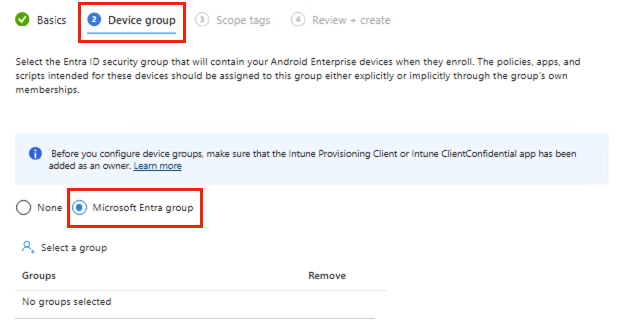
While optional, this is required if you want to use Enrollment Time Grouping, so let’s get specific.
Android Enterprise Requirements
First things first: For Android, Enrollment Time Grouping is only supported on certain Android Enterprise enrollments.
Here’s an overview of which enrollment types are included:
- Corporate-owned, fully managed
These are single-user devices that are owned by the organization and are intended to be used only for work. Intune manages the entire device. - Corporate-owned devices with a work profile
Sometimes referred to as “COPE”, these are organization-owned devices that allow a single user to use the device personally alongside a separate work profile containing work apps and data. - Corporate-owned dedicated devices
Dedicated devices refer to corporate-owned devices that are used in a userless context. These are commonly used as kiosks, scanners, POS devices, shared/multi-user devices, and more.- Dedicated devices have a different choice when it comes to token types. Along with the standard dedicated device option, Intune also offers “Microsoft Entra ID shared mode” which will enroll the device with Microsoft Authenticator set to Microsoft Entra shared device mode. When this is utilized, supported applications will be able to coordinate both single sign-in and single sign-out- meaning that users will be able to sign out across supported apps before the next user is ready to log in.
Note: When working with fully managed and corporate-owned work profile enrollments, you will see an option to select a token type that includes an option for “staging”. If you want to utilize Enrollment Time Grouping, be sure to select the default option as your token type- the staging option is not supported.
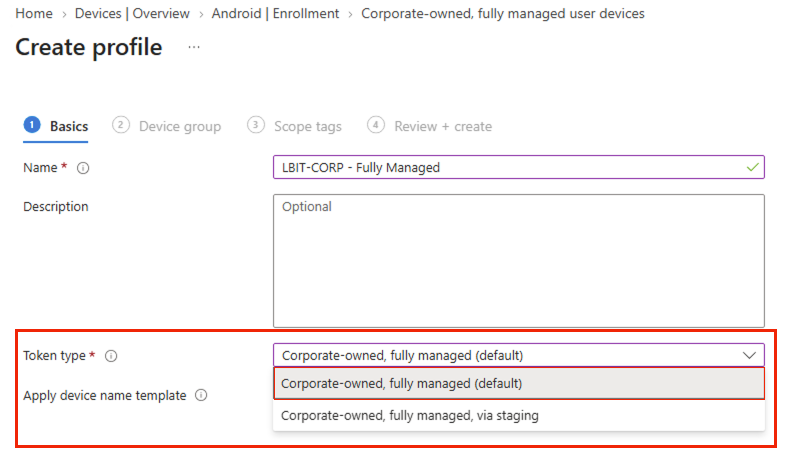
Now I don’t want to get too far off track here, but I do think it’s worth explaining why you might choose staging instead of the default token and what you give up when you do.
With the default token, the device goes through the standard enrollment process where your end user completes remaining steps for setup.
Staging allows an admin or vendor to complete more of that setup before the device ends up in a user’s hands. The device will be considered userless until a user receives it and signs in to the Microsoft Intune application with their work or school account.
With staging, you can reduce some of the work left for the user during setup but you will lose the ability to have devices complete the Enrollment Time Grouping process.
Permissions required to create an Enrollment Profile with Enrollment Time Grouping:
- An Entra ID role like Intune Administrator or Global Administrator
OR
Intune Role Based Access Control Permissions
- “Enrollment time device membership assignment for Android Enterprise”
- “Android Enterprise”: Read
- “Android Enterprise”: Update enrollment profiles
- “Managed devices”: Read (to view the Enrollment time grouping failures report)
The Enrollment Time Grouping… Group
Just like with Apple, you will need an “Assigned” (static) Entra ID security group that you can link to your enrollment profile.
To add the Intune Provisioning Client as a group owner, you’ll need the Microsoft Entra Groups Administrator role, a custom role containing microsoft.directory/groups/owners/update, or an account that already owns the group.
Finally, if you are using Intune RBAC to delegate administration in your tenant, make sure that the target group is included in the administrator’s scope groups.
Creating your Enrollment Time Group
You will need to make sure that you add the Intune Provisioning Client as a group owner of the Assigned Entra ID group you choose to use for this process. The client can be named differently depending on your tenant, so the most foolproof way to do this is by searching for and adding based on the AppId:
f1346770-5b25-470b-88bd-d5744ab7952c
This is the group that you will add to your enrollment profile (as mentioned above).
Note: Each enrollment profile can link to one of these security groups. Also, keep in mind that changing the group selection later won’t move devices that were previously enrolled.
Now you can use this group for your policy and application assignments.
Enroll Your Android Enterprise Devices
Once you have created your enrollment profile and linked your static Entra ID group, you can start enrolling your devices.
The good news is, this will look just the same as it has before!
Feel free to enroll via:
- QR Code
- Google Zero-touch enrollment
- Samsung Knox Mobile Enrollment
- NFC provisioning wherever supported
Make sure to remember: Enrollment Time Grouping will only work with new enrollments; it won’t automatically add existing devices that are already enrolled to the group.
Check Your Enrollments
Once a device completes enrollment, it should appear as a member in the Entra ID security group that you linked to the profile earlier. Verify that the device is receiving assigned policies and applications. It is normal to see that applications may still be downloading once the device hits the home screen.
If you notice the device isn’t appearing in the security group, you can go to Intune and check Devices > Monitor > Enrollment time grouping failures
This report will specifically list failures, and new or updated information can take up to 20 minutes to appear.
Wrapping things up
TL;DR: Enrollment Time Grouping lets you add an Entra ID security group to Enrollment Profiles- allowing devices to be added automatically as they go through enrollment. When setting up the security group, make sure to add the Intune Provisioning Client as a group owner, link the group to your enrollment profile, and assign your apps and policies to it. Remember: staging tokens aren’t supported, and devices will only be automatically added at the time of enrollment.
Well folks, that’s a wrap on Android Enterprise Enrollment Time Grouping. As always, feel free to share your experience in the comments. We’ll see you again with Part 3: Windows 11 and Autopilot device preparation.
Sources
Microsoft Learn: Enrollment time grouping in Microsoft Intune
Microsoft Learn: Set up enrollment for Android Enterprise fully managed devices
Microsoft Learn: Set up Intune enrollment for Android Enterprise dedicated devices


Leave a Reply